
Add general meeting files from the meeting’s Documents tab. If a file supports one agenda item, you can attach it directly to that agenda heading instead.
Before you begin: You need access to the meeting and permission to manage its documents. Members can only see files allowed by the meeting, committee, folder, and document permissions.
Add general meeting documents #
- Open Meetings and select the meeting.
- Select the Documents tab.
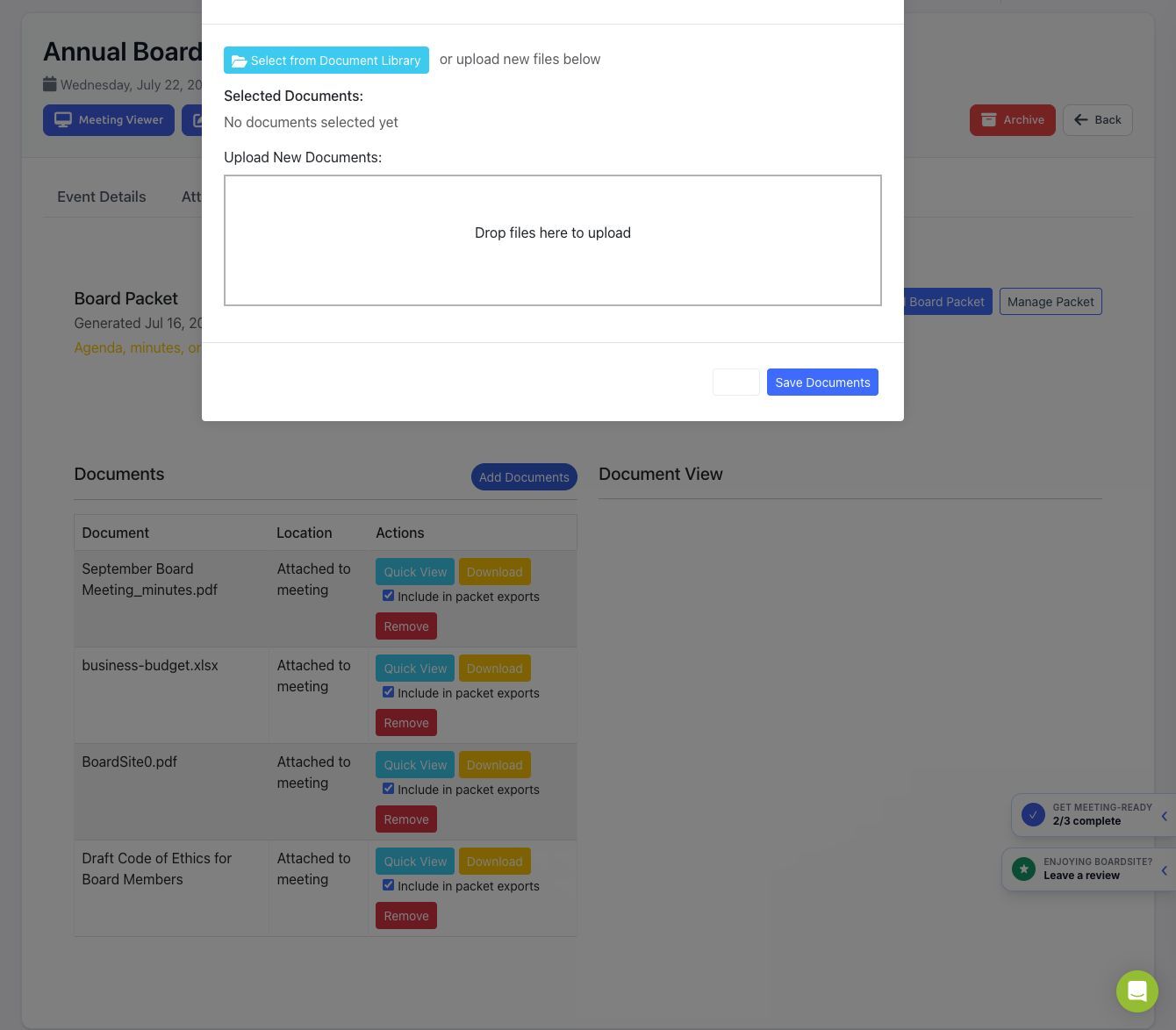
- Select Add Documents.
- Choose one or both options:
- Select Select from Document Library to link an existing BoardSite document.
- Drag files into the upload area to upload new documents.
- Review the Selected Documents list.
- Select Save Documents.
Manage attached documents #
The Documents tab identifies where each file is attached and provides the actions available to you:
- Quick View opens the document in BoardSite.
- Download downloads the file when permitted.
- Include in packet exports controls whether the file is eligible for the board packet.
- Remove detaches the file from the meeting. It does not necessarily delete the underlying library document.
Attach a document to an agenda item #
- Open the meeting’s Agenda tab.
- Add a heading or edit an existing heading.
- Under Documents, select a file from the Document Library or upload a new file.
- Save the agenda item.
Board packet: If the meeting already has a generated packet, BoardSite warns when agenda, minutes, or documents have changed. Regenerate the packet when the published materials change.
Troubleshooting #
- If Add Documents is missing, ask an administrator to review your meeting-document permissions.
- If a library document is missing, verify its folder and committee visibility.
- If a member cannot open a file, confirm that the member can access both the meeting and the document.
- If a packet is stale, review the included-file checkboxes and regenerate it.


