
Use BoardSite to create an in-person, virtual, or hybrid meeting for the full board or a committee. You can build a meeting manually or use a previous meeting as a starting point.
Before you begin: You need permission to create meetings. If the meeting is for a committee, create or confirm that committee before scheduling the meeting.
Open the meeting creator #
- Sign in to BoardSite and select the correct organization.
- Open Meetings, then select Upcoming.
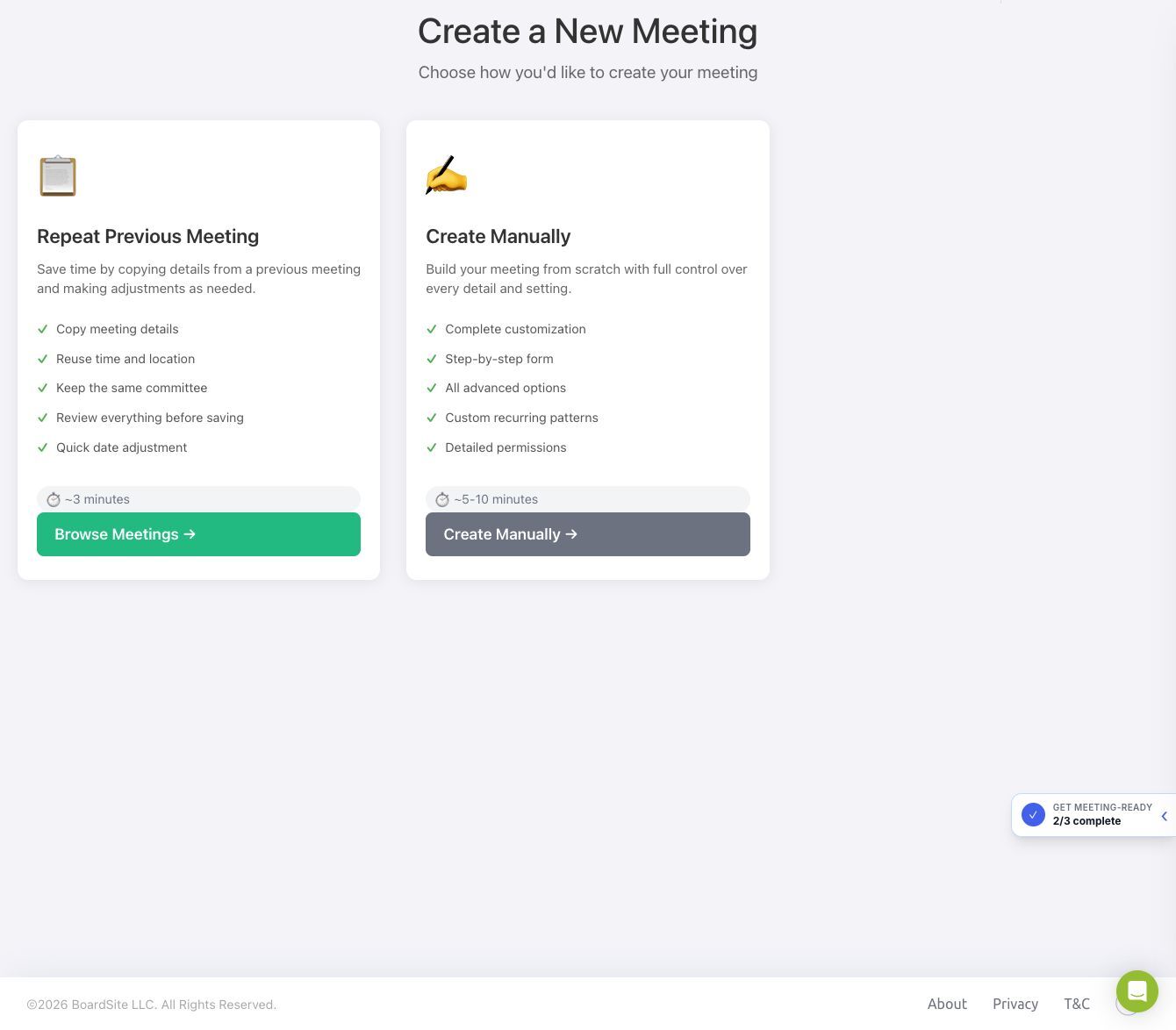
- Select Add Event. You can also use Create New on the dashboard and choose New Meeting.
- Choose one of the following:
- Repeat Previous Meeting copies details from an existing meeting so that you can review and adjust them.
- Create Manually starts with a blank meeting form.
Create the meeting manually #
- Select Create Manually.
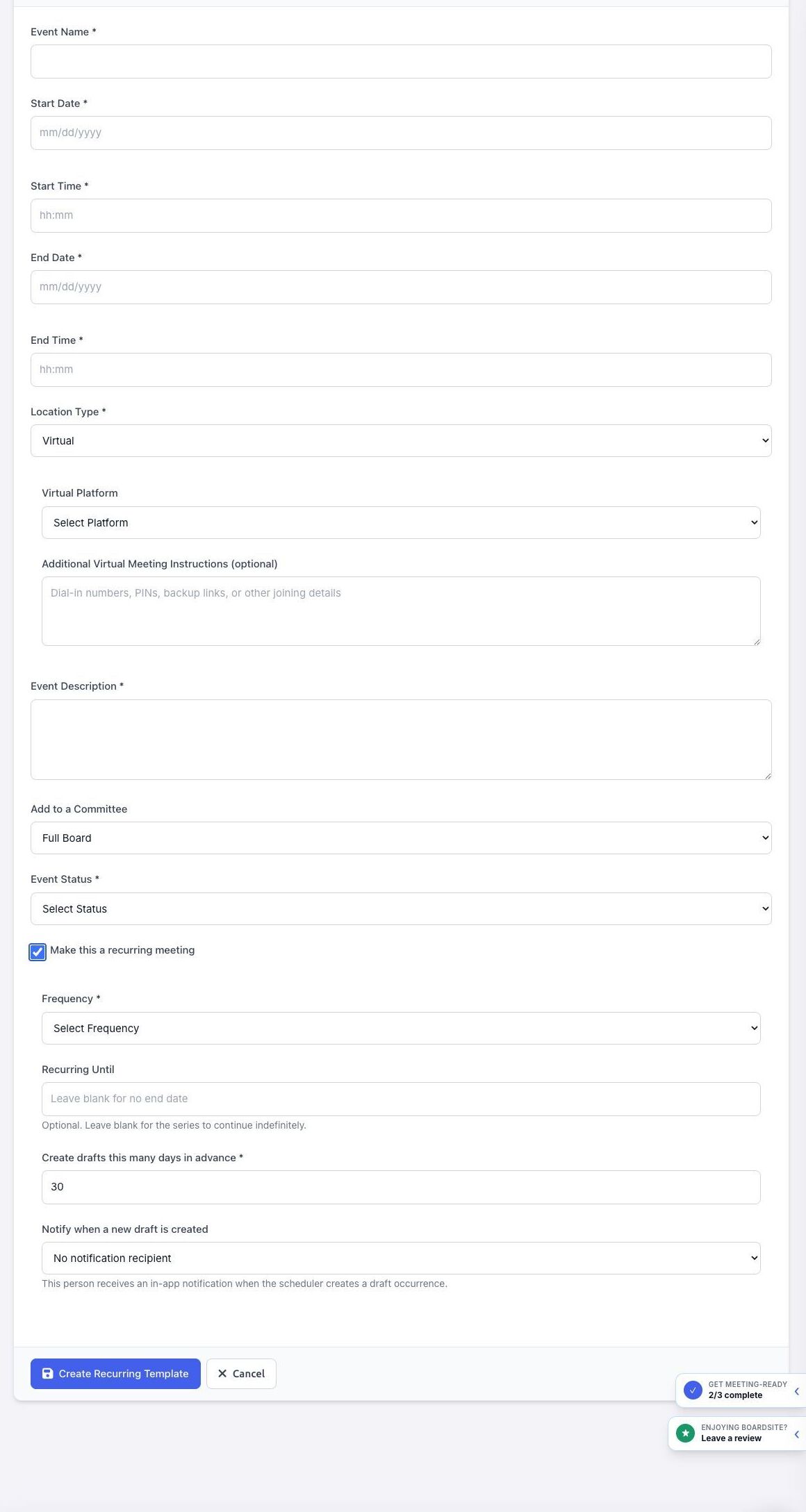
- Enter the Event Name, start and end dates, and start and end times.
- Choose a Location Type:
- In Person: enter the physical meeting location.
- Virtual: choose Zoom (Manual), Teams (Manual), Google Meet, or Other, then provide the joining information requested by the form.
- Hybrid: provide both the physical location and virtual joining information.
- Enter an Event Description.
- Select the committee, or leave Full Board selected.
- Choose an Event Status:
- Draft keeps the meeting in preparation.
- Published makes the meeting available to the permitted participants.
- Scheduled records the meeting as scheduled.
- Canceled marks the meeting as canceled.
- To create a series, select Make this a recurring meeting and complete the recurring options.
- For a one-time meeting, select Send an email notification of this new event to all board members? only if you are ready to notify participants. The creation-time email option is hidden for a recurring template because occurrences are created as drafts.
- Review the dates, times, committee, status, and notification choice, then select Create Meeting. For a recurring series, the button reads Create Recurring Template.
Repeat a previous meeting #
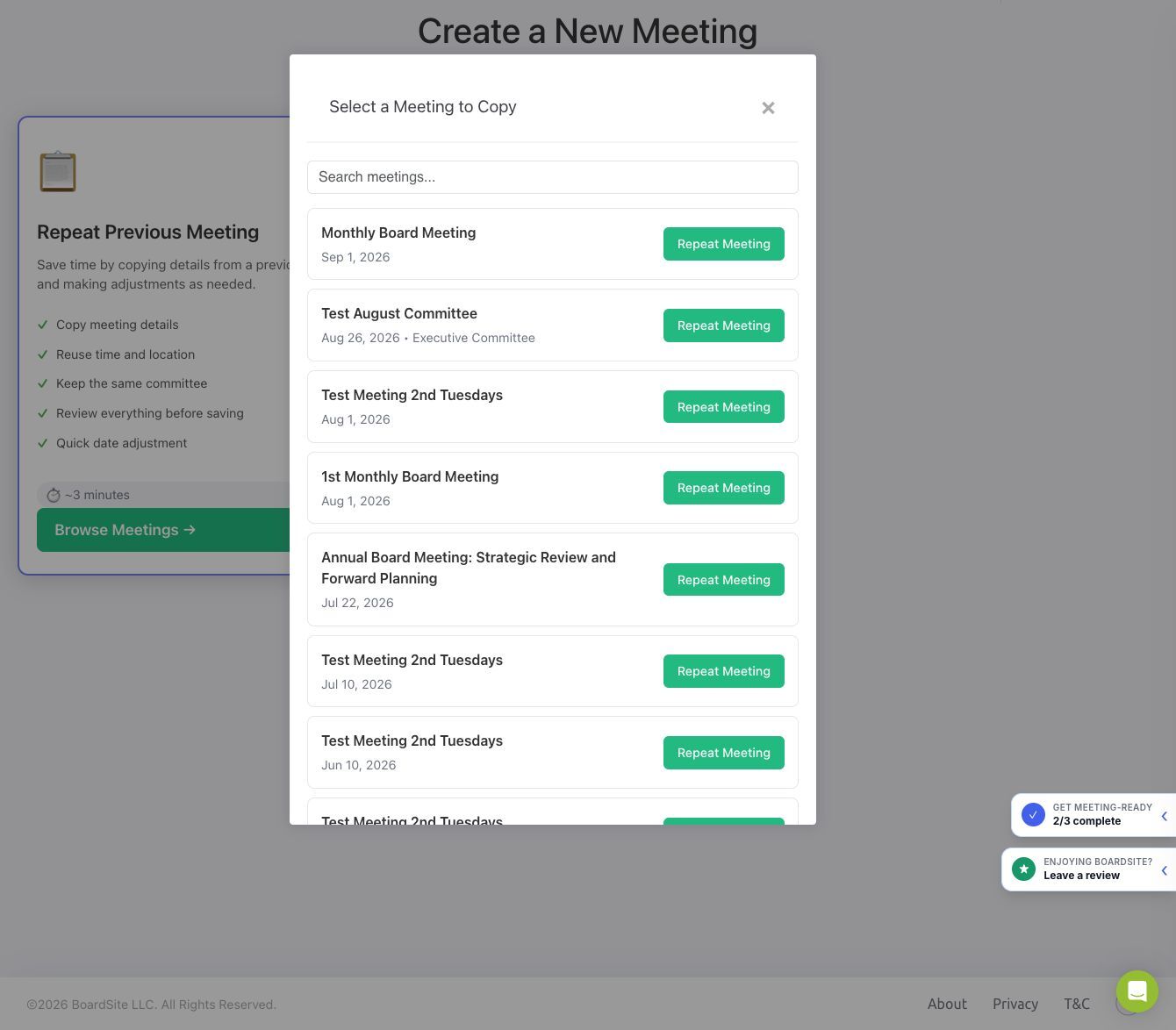
- From the meeting creator, select Repeat Previous Meeting.
- Search for the source meeting, then select Repeat Meeting.
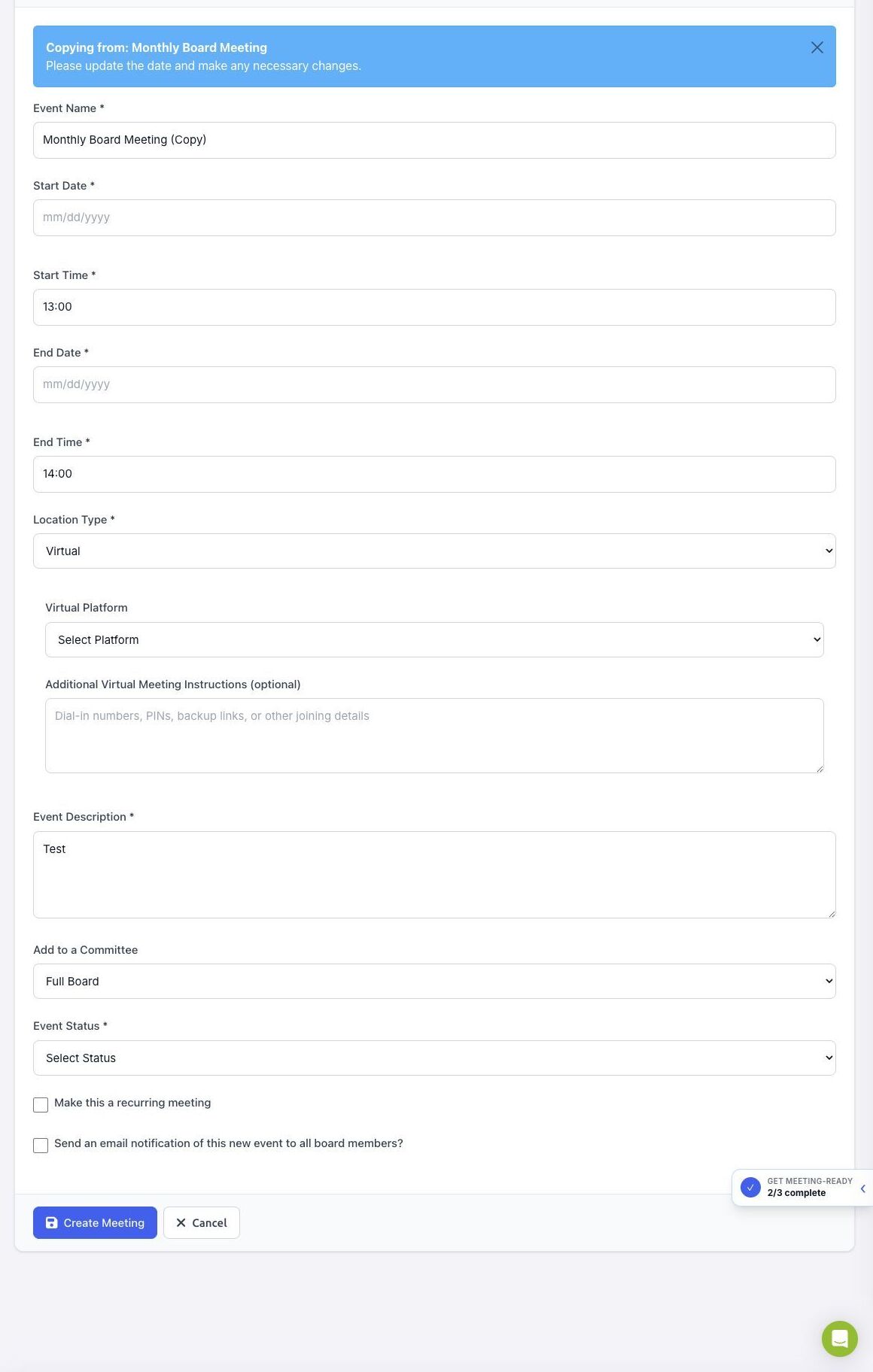
- BoardSite opens a copied meeting form and adds “(Copy)” to the event name.
- Enter the new start and end dates. Review the name, times, location, description, committee, virtual details, status, and notification choice.
- Select Create Meeting only after confirming that all copied details are appropriate for the new meeting.
What happens next #
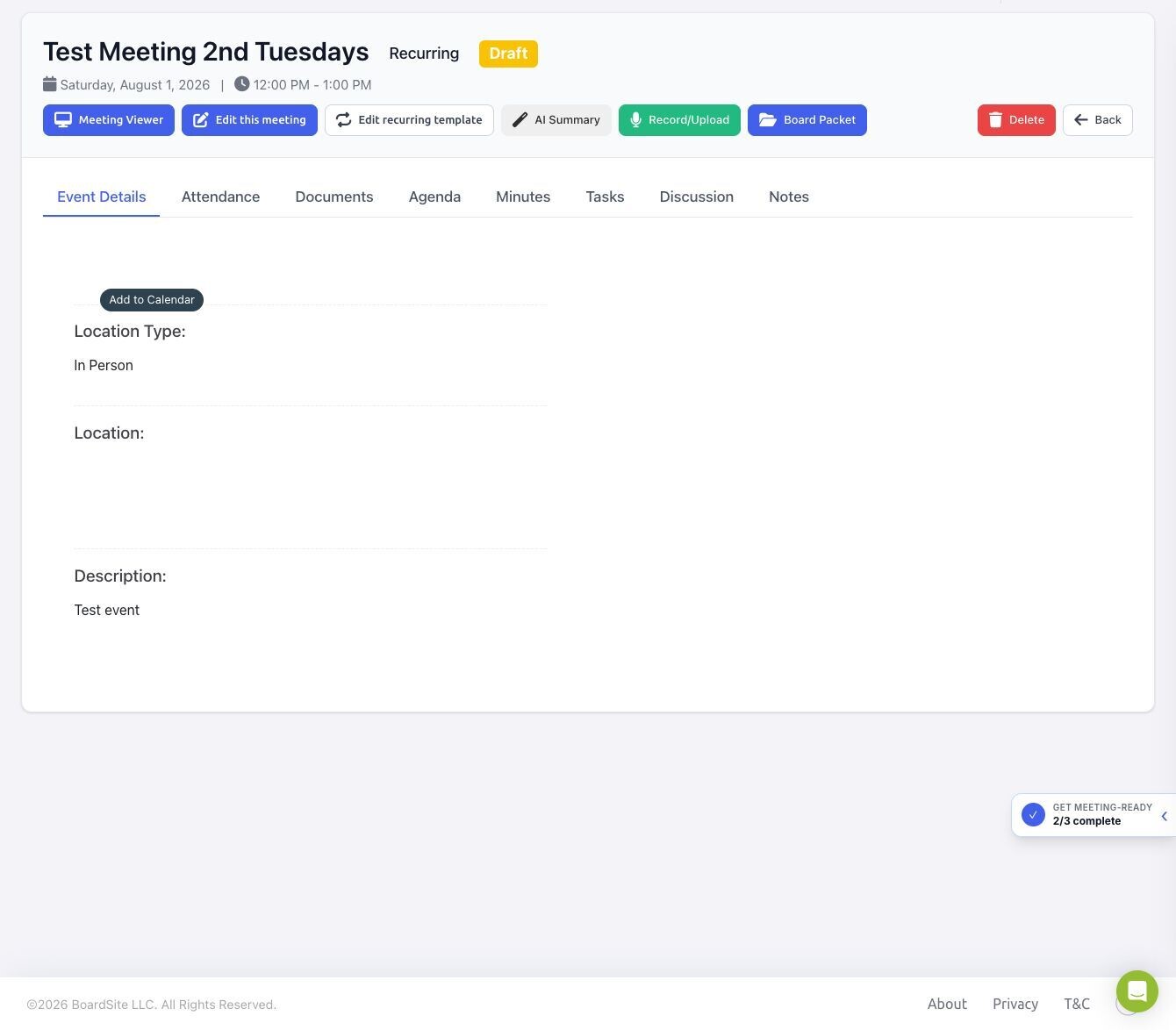
BoardSite opens the meeting workspace. From there, authorized users can manage attendance, documents, the agenda, minutes, tasks, discussion, notes, AI tools, recordings, and the board packet. Visibility depends on the meeting status, committee membership, and each person’s permissions.
Time-zone tip: Meeting lists let you switch between your personal time zone and the organization time zone. Confirm which one is displayed before communicating a meeting time outside BoardSite.
Troubleshooting #
- If Add Event is missing, ask an organization administrator to review your meeting permissions.
- If a committee is missing, confirm that it exists and that you can access it.
- If a virtual provider is unavailable, add a manual joining link or ask an administrator to review Organization → Integrations.


