
The Tasks area separates work assigned to you from work you created for other people. Use the view that matches what you need to review or change.
Choose a task view #
- All Tasks: review tasks you are permitted to see and switch among All Tasks, My Tasks, Tasks I Assigned, Open, Completed, Cancelled, and Overdue.
- My Tasks: focus on your assigned work and filter it by All Open Tasks, Open Only, Completed, or Overdue.
- Tasks I Assigned: track tasks you created for other members.
- Completed Tasks: review completion details and reopen a task when your permissions allow it.
- Overdue Tasks: prioritize open tasks whose due dates have passed.
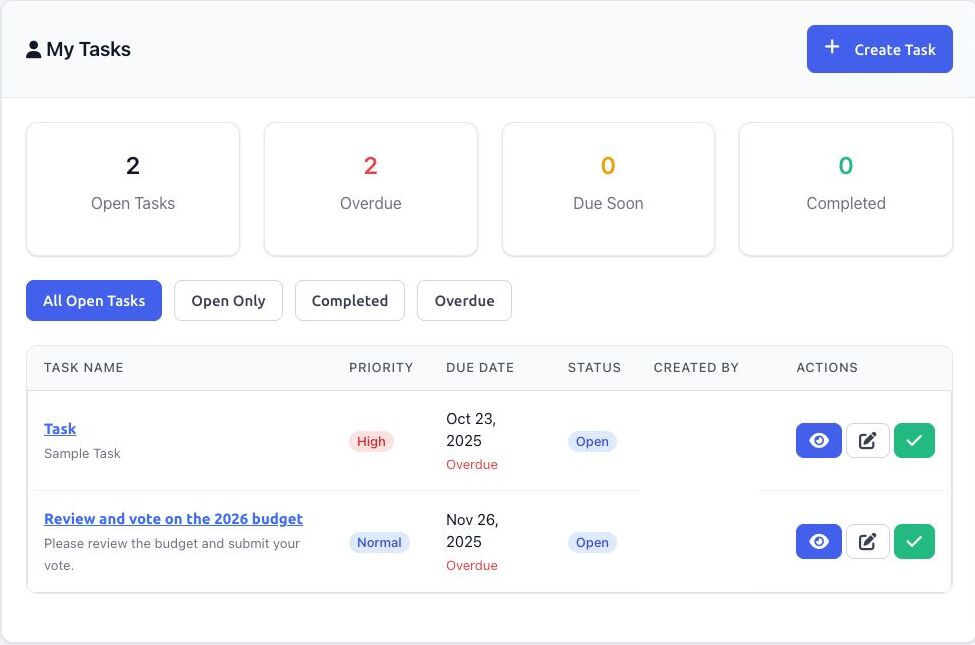
Review or update a task #
- For a task shown under the dashboard’s Priority Actions, select its action to open or complete it. Otherwise, open Tasks and choose the most relevant view.
- Select a task name or the View action to open its detail page.
- Review the description, assignee, creator, due date, status, priority, and related meeting when one is shown.
- Use the available action:
- Edit changes details when your role permits it.
- Complete or Mark as Complete finishes an open task.
- Reopen returns a completed task to open status.
- Delete removes a task and should be used only when the task itself is no longer needed.
Permission note: Actions vary with your effective task permissions and relationship to the task. A Director may be able to edit tasks assigned to them or created by them, while broader task-management access depends on the organization’s role configuration.


