
Create a standalone task when a board member, officer, or staff member needs a clearly assigned follow-up. If your role includes task-creation permission, you can assign the same task to one or more members and set a due date, priority, and reminder.
Before you begin: BoardSite creates a separate task for every selected assignee. Confirm the assignee list before selecting Create Task.
Create the task #
- Sign in to BoardSite and select the correct organization.
- Open Tasks → Create Task. You can also select Create Task from a task list when that action is available.
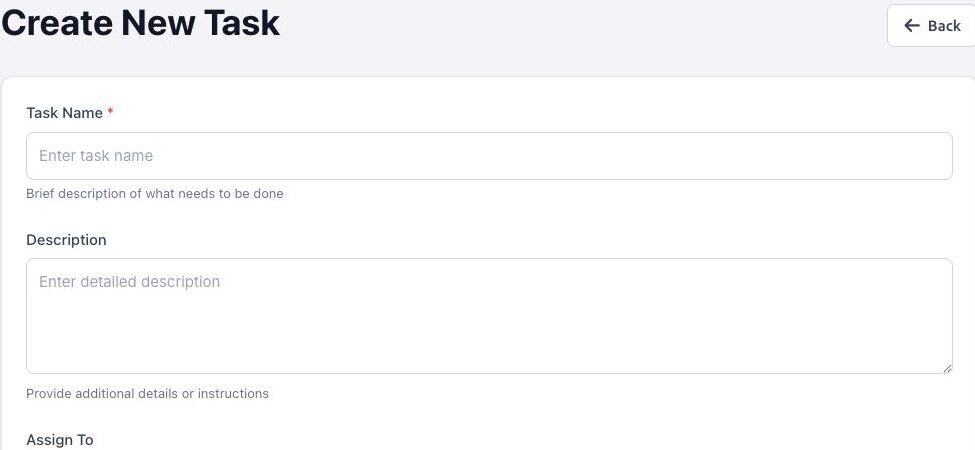
- Enter the required Task Name and, if useful, a detailed Description.
- Under Assign To, select one or more members. Use Select All only when every listed member should receive an individual copy.
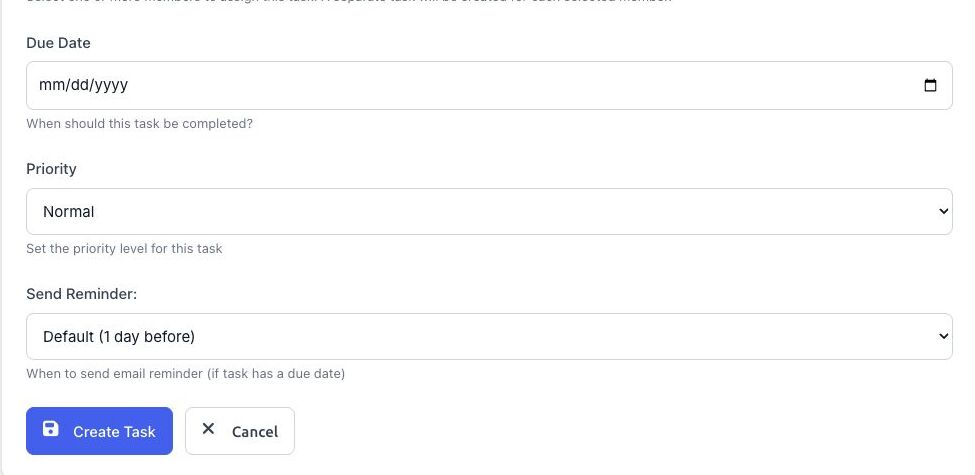
- Set an optional Due Date.
- Choose a Priority: Low, Normal, Medium, or High.
- If a Related Meeting field appears, you can link the task to a meeting. This option depends on your organization’s enabled features.
- Choose when BoardSite should send the task reminder. A reminder is sent only when the task has a due date.
- Review the form, then select Create Task.
What happens next #
Each selected member receives a separate task. The task appears in the assignee’s My Tasks view and in the creator’s Tasks I Assigned view. Availability of email reminders depends on the due date and reminder choice.
Troubleshooting #
- If Create Task is missing, ask an administrator to review your task permissions.
- If a member is missing, confirm that the person is an active member of the organization.
- If the related-meeting field is absent, the feature may not be enabled for your organization.


