
Connect a Zoom account at the organization level so authorized meeting editors can create and link Zoom meetings from BoardSite.
Before you begin: You need a Zoom account and BoardSite’s Manage integrations permission. Confirm that you are working in the correct BoardSite organization before connecting.
Connect Zoom #
- Sign in to BoardSite and select the organization you want to configure.
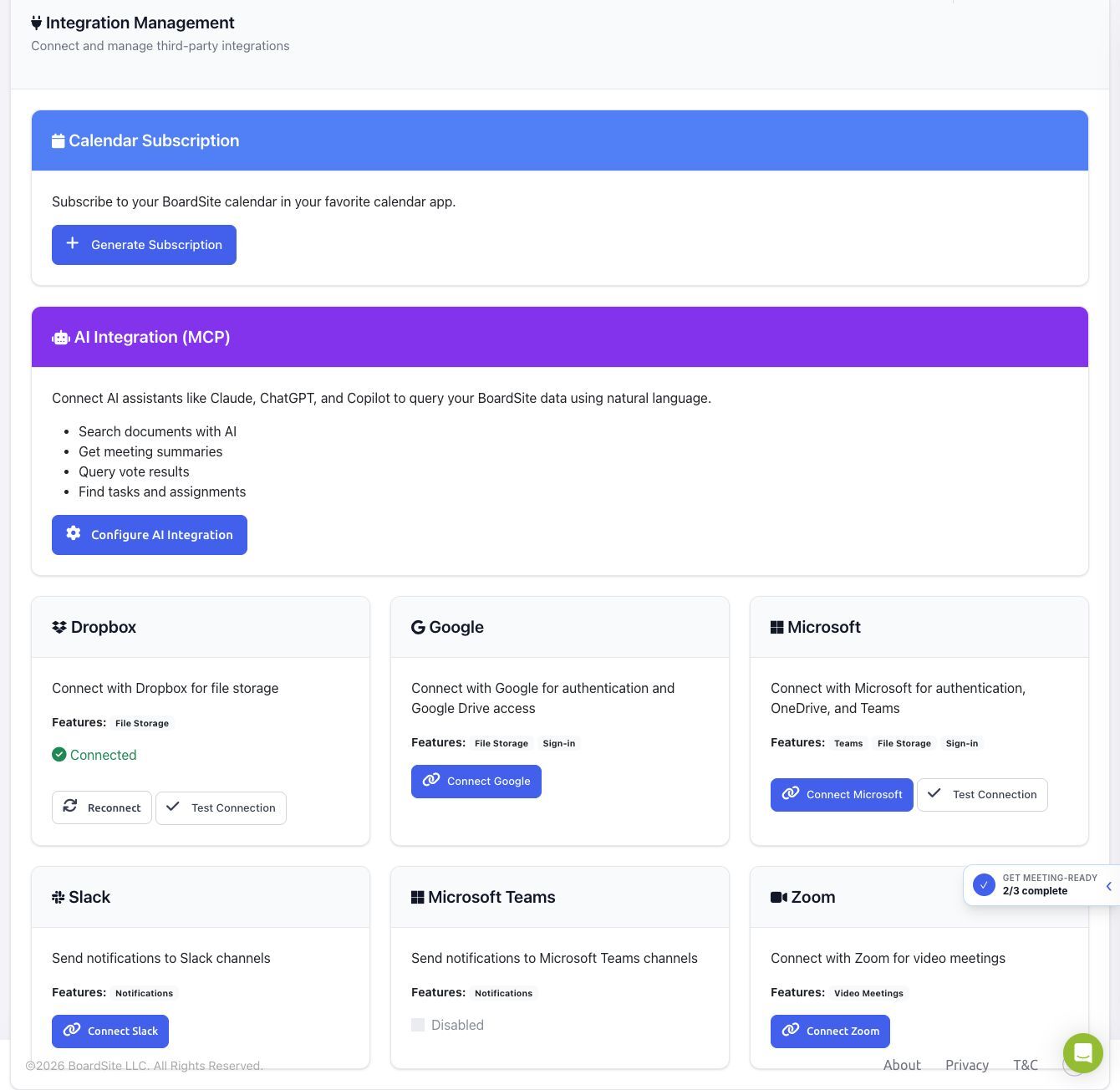
- Open Organization → Integrations.
- Find the Zoom card.
- Select Connect Zoom.
- On Zoom, sign in to the account that should own the organization’s BoardSite-created Zoom meetings.
- Review the permissions requested by BoardSite, then authorize the connection.
- After Zoom returns you to BoardSite, confirm that the Zoom card shows Connected.
Choose the Zoom account carefully #
The connection belongs to the active BoardSite organization. Use an organizational Zoom account that administrators can maintain rather than a temporary personal account. If the connected Zoom user loses access or authorization expires, return to the Zoom card and select Reconnect.
Security: Never paste Zoom OAuth codes, access tokens, or BoardSite session information into a support request. BoardSite completes the connection through Zoom’s authorization screen.
Troubleshooting #
- If Organization → Integrations is missing, ask an administrator to review your Manage integrations permission.
- If authorization is canceled or expires, return to BoardSite and select Connect Zoom again.
- If the wrong Zoom account was connected, disconnect it from BoardSite, then connect the correct account.
- If Zoom is connected but Zoom (Auto-create) is missing from a meeting form, refresh the page and confirm that you are in the same BoardSite organization that owns the connection.


