
Record minutes from the Minutes tab in the meeting workspace. BoardSite uses the meeting agenda as the structure for manual minutes.
Before you begin: Add the agenda headings first. You need permission to edit the meeting’s minutes.
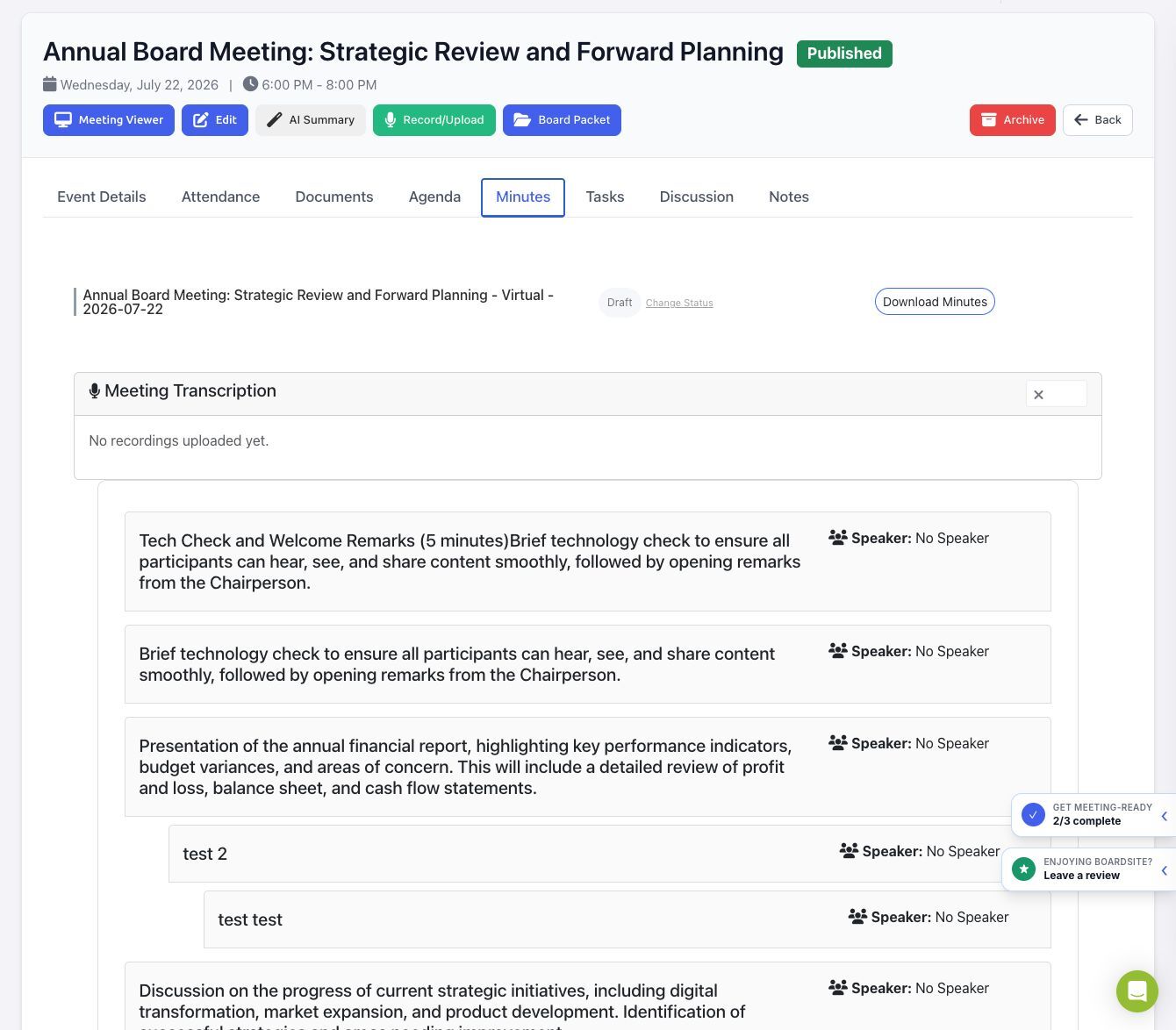
Open the minutes workspace #
- Open Meetings and select the meeting.
- Select the Minutes tab.
- Review the agenda sections listed on the page.
Add or edit notes #
- Find the agenda section you want to document.
- Select Add Note. If a note already exists, select Edit Note.
- Enter the decisions, motions, actions, and other approved record for that agenda section.
- Save the note.
- Repeat for the remaining agenda sections.
Use recordings or transcription #
The Minutes tab includes a Meeting Transcription area. Authorized users can also select Record/Upload from the meeting toolbar. Recording, uploading, transcription, and AI-generated minutes depend on your organization’s enabled features and should be reviewed before anything is treated as the official record.
Review required: A transcript or AI-generated draft can contain mistakes. Verify attendance, motions, vote results, decisions, names, and action items before publishing or approving minutes.
Change the minutes status #
- Select Change Status on the Minutes tab.
- Choose Draft, Published, or Approved.
- Optional: select the email-notification option. Notifications are limited to people who can access the meeting.
- Select Change.
- Draft: keeps the minutes in preparation.
- Published: makes the minutes available to permitted meeting participants.
- Approved: records the approved minutes and prevents ordinary future editing.
Select Download Minutes when you need a downloadable copy.
Troubleshooting #
- If no agenda sections appear, add the meeting agenda first.
- If editing controls are missing, ask an administrator to review your minutes permissions.
- If members cannot see the minutes, check the minutes status, meeting visibility, and committee access.
- If a recording is still processing or failed, do not publish AI-generated output; retry or contact BoardSite support.


