When you finish an assigned task, mark it complete from the task list or its detail page. BoardSite records the completion and moves the task into the completed view.
Complete a task from My Tasks #
- If the task appears under the dashboard’s Priority Actions, select Complete. Otherwise, open Tasks → My Tasks.
- Find the task. Use Open Only or Overdue to narrow the list if needed.
- Select the green Complete action in the task’s row.
- Confirm the task now appears as completed.
Complete a task from its detail page #
- Select the task name or View.
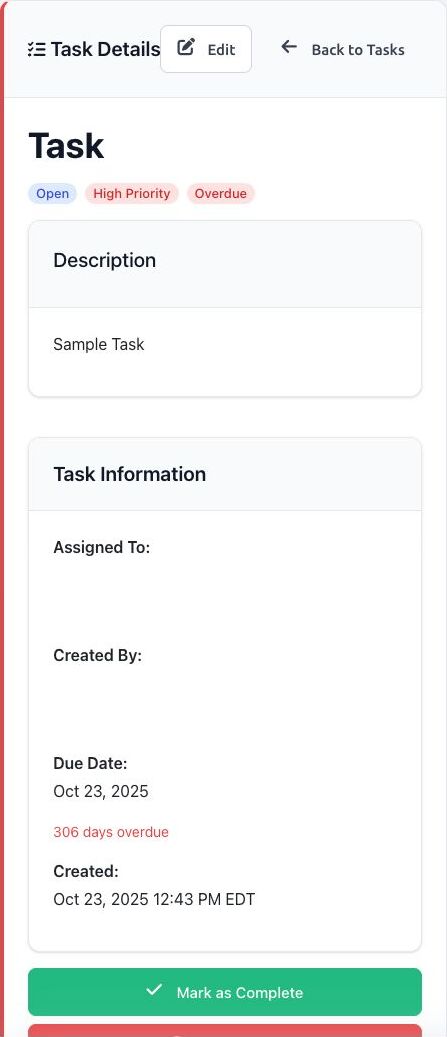
- Review the description and due date to make sure you opened the correct task.
- Select Mark as Complete.
Reopen a completed task #
If more work is required, open Completed Tasks and select Reopen when that action is available. The task returns to an open state. Ask the task creator or an administrator for help if your role cannot reopen it.
Multiple-assignee note: A separate task is created for each assignee, so completing your task does not complete another member’s copy.


